Ultra-lightweight Retro Paint & Pixel Art Launching in 0.01 Seconds
Handcrafted with pure Win32 GDI C++, free from Electron and web-view bloat. A 600 KB single binary, starting instantly under 5 MB RAM, flawlessly supporting Windows 95 Gold through Windows 11 and Linux Wine.
- Pure Win32 GDI (No Direct2D/MFC)
- 32bpp DIB Canvas
- 18 Classic Tools
- Fuzzy Select (Magic Wand)
- Bezier Pen Tool
- Region & Path Mosaic
- Up to 1600% Zoom & Pixel Grid
- Zero Chromium Bloat
 spaceship_encounter.png - getPaint [32bpp DIB]
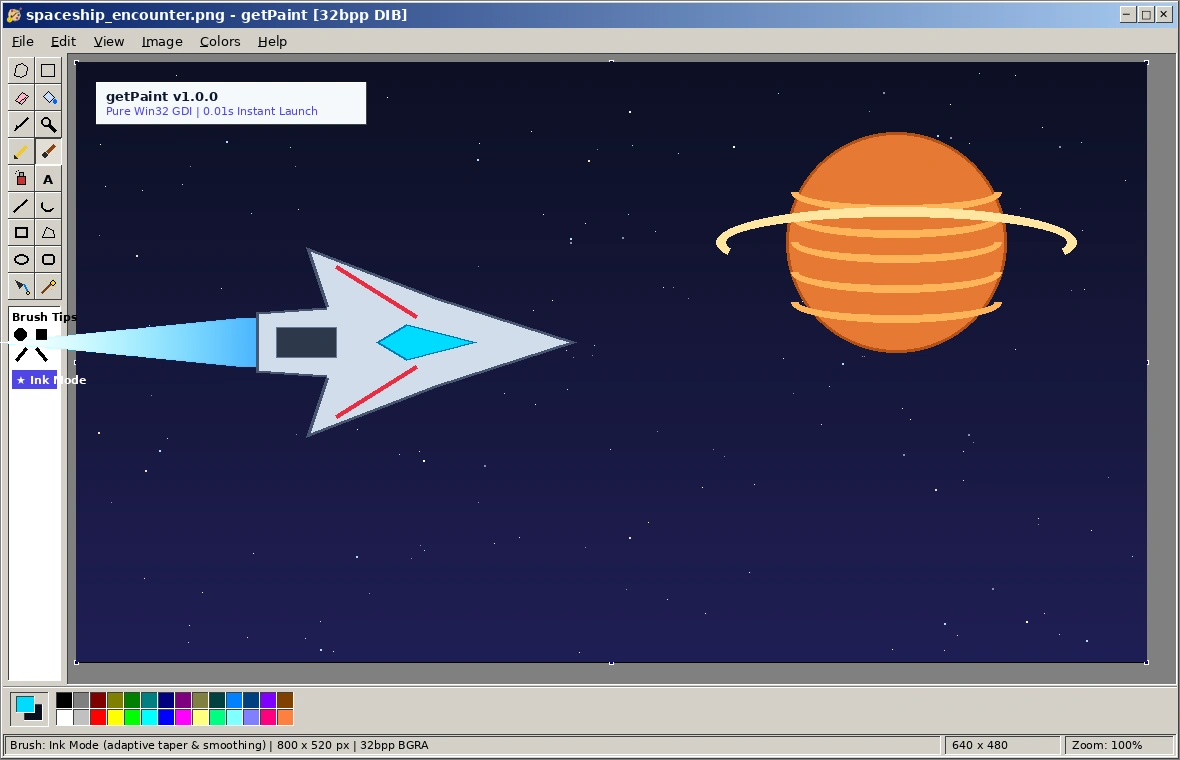
The Greatest Electron Transition for Graphics
Built from scratch in pure C++ Win32 GDI to reclaim lightning-fast desktop responsiveness lost to modern web frameworks.
0.01s Instant Startup & < 5MB RAM
No Chromium runtimes, no node.js processes, and no Electron overhead. getPaint initializes its 32bpp BGRA DIB Section, double-buffered viewport, and 18-tool pipeline in 10 milliseconds flat.
18 Classic Tools + Modern Additions
Every beloved classic tool—from the signature Right-Click Color Eraser and 4-way Scanline Flood Fill to In-place Text. Supercharged with GIMP-style Magic Wand, Photoshop-style Bezier Pen paths, and instant Mosaic pixelation.
Win95 to Win11 Flawless Compatibility
Vista+ threading symbols (GetThreadId, ConditionVariables) are stubbed at the assembly level. Missing msimg32.dll on Windows 95 automatically falls back to 2-pass monochrome mask blitting with zero crashes.
Pixel Precision Meets Classic Nostalgia
Everything you love about classic MSPaint, enhanced with modern tools for game sprites, pixel art, and image editing.
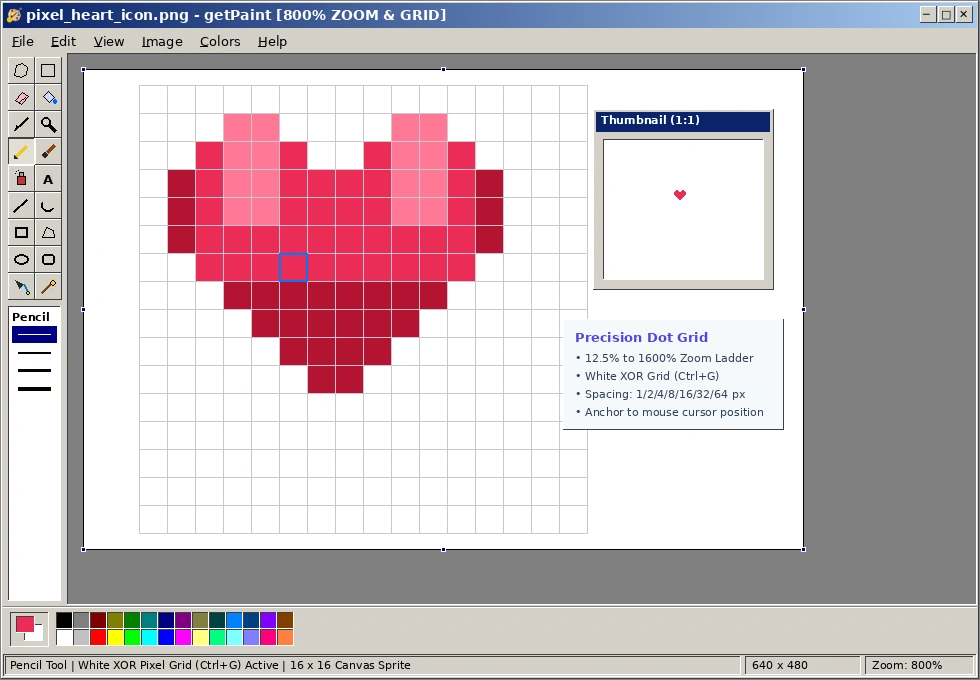
12.5% to 1600% Zoom Ladder & Dynamic Pixel Grid
Whether authoring tiny 16x16 RPG game sprites or editing high-res digital artwork, getPaint provides smooth, continuous mouse wheel zooming and bracket presets.
- White XOR Pixel Grid (Ctrl+G): Clearly visible against both pure black and pure white backgrounds.
- Custom Grid Spacing: 1, 2, 4, 8, 16, 32, or 64 px spacing presets.
- Cursor-Anchored Zoom & Pan: Zoom targets the pixel under your cursor. Hold Space + Drag to pan across large canvases.
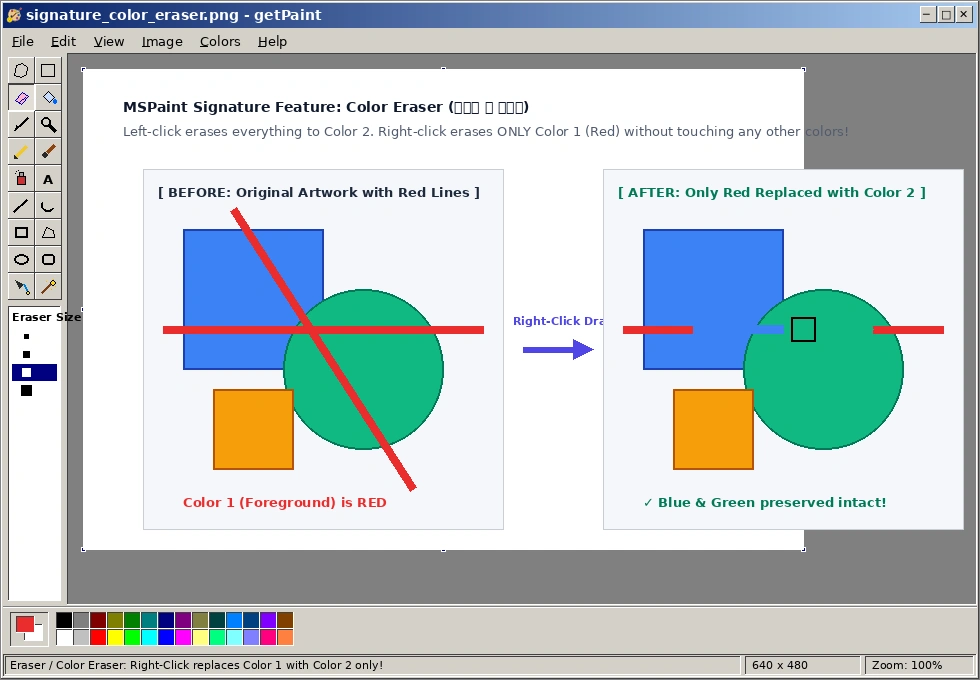
The Legendary Right-Click Color Eraser
MSPaint's most famous secret weapon is back in full glory. Left-click erases everything to Color 2 (Background), while right-clicking selectively erases only Color 1 (Foreground) pixels, leaving surrounding lines and fills completely untouched.
- Surgical Line Cleanups: Remove stray draft sketch lines without erasing inked contours or color flats.
- 4 Classic Eraser Sizes: 4x4, 6x6, 8x8, and 10x10 px square nibs.
- Atomic Undo (Ctrl+Z): Full 32bpp undo snapshots captured atomically on every stroke.
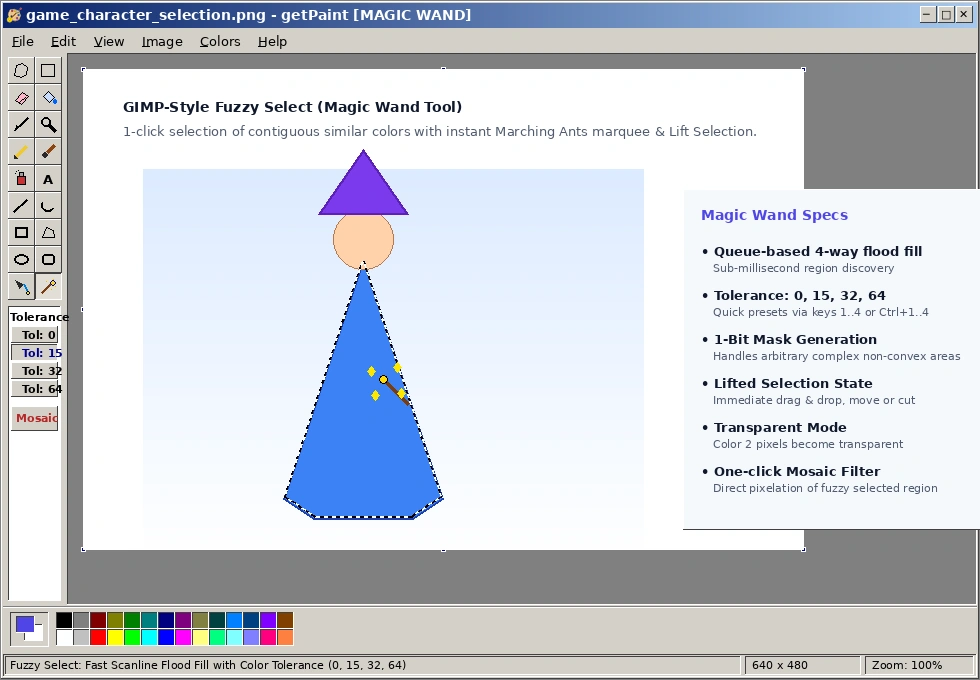
GIMP-Style Fuzzy Select & Tolerance Presets
Select contiguous color regions instantly with a single mouse click. Powered by a high-speed queue-based 4-way scanline flood fill engine, getPaint generates a 1-bit mask and promotes the target to a floating selection.
-
4 Tolerance Presets: Press 1.. 4 or Ctrl+1..Ctrl+4 to toggle tolerance levels
0,15,32, or64. - Animated Marching Ants: Crisp, flicker-free dotted boundary visualization in all zoom modes.
- One-Click Mosaic: Apply pixelation directly to the selected fuzzy region with a single keystroke.
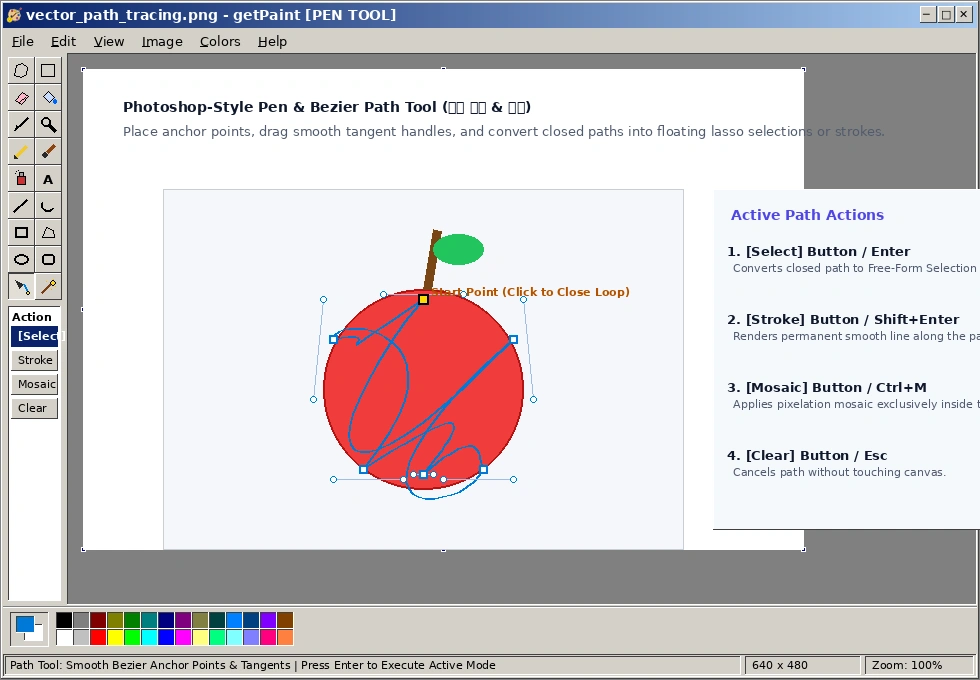
Photoshop-Style Pen Tool with Bezier Curves
Create smooth vector paths directly on the raster canvas! Click to lay corner anchor points, or drag to extend smooth tangent bezier handles. Close the loop by clicking near the starting anchor point.
- [Select] Action (Enter): Converts the closed bezier loop into a Free-Form Selection with a GDI winding region mask.
- [Stroke] Action (Shift+Enter): Renders silky 32-step interpolated curves using the active line width and Color 1.
- Interactive Tangents: Smoothly manipulate curvature handles before committing to the canvas.
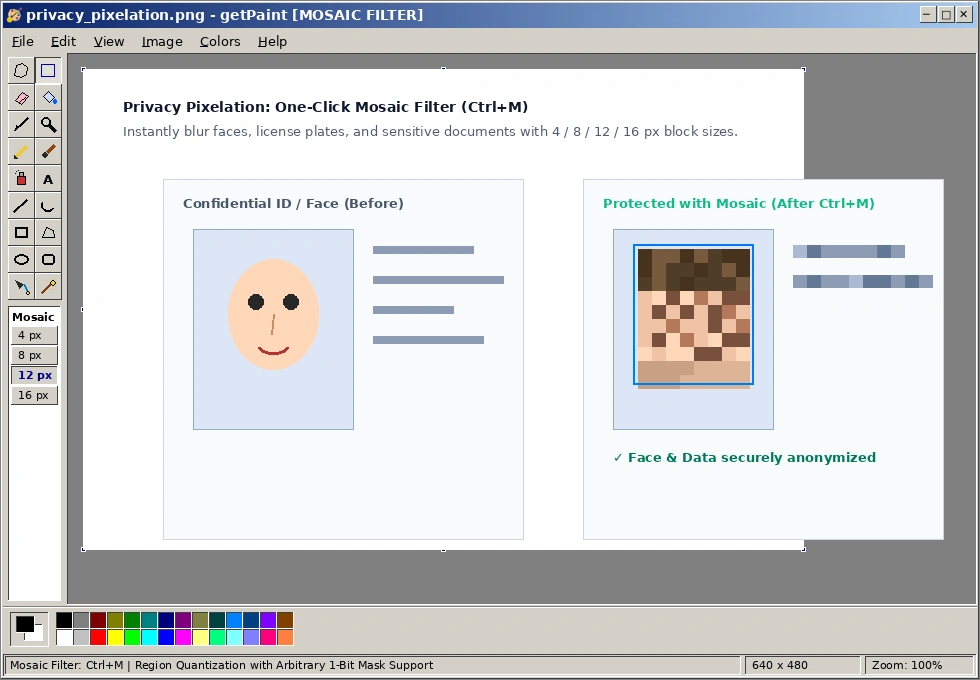
One-Click Privacy Mosaic Filter (Ctrl+M)
Censor faces, license plates, passwords, or confidential document snippets in under a second. The integrated mosaic quantization filter operates on rectangular boxes, free-form lasso selections, and pen loops.
- Instant Shortcut: Press Ctrl+M to pixelate the current selection immediately.
- 4 Block Size Presets: Choose 4 px, 8 px, 12 px, or 16 px quantization blocks from the toolbox.
- Floating DIB Preservation: When pixelating a lifted selection, the floating sprite remains movable without baking into the canvas.
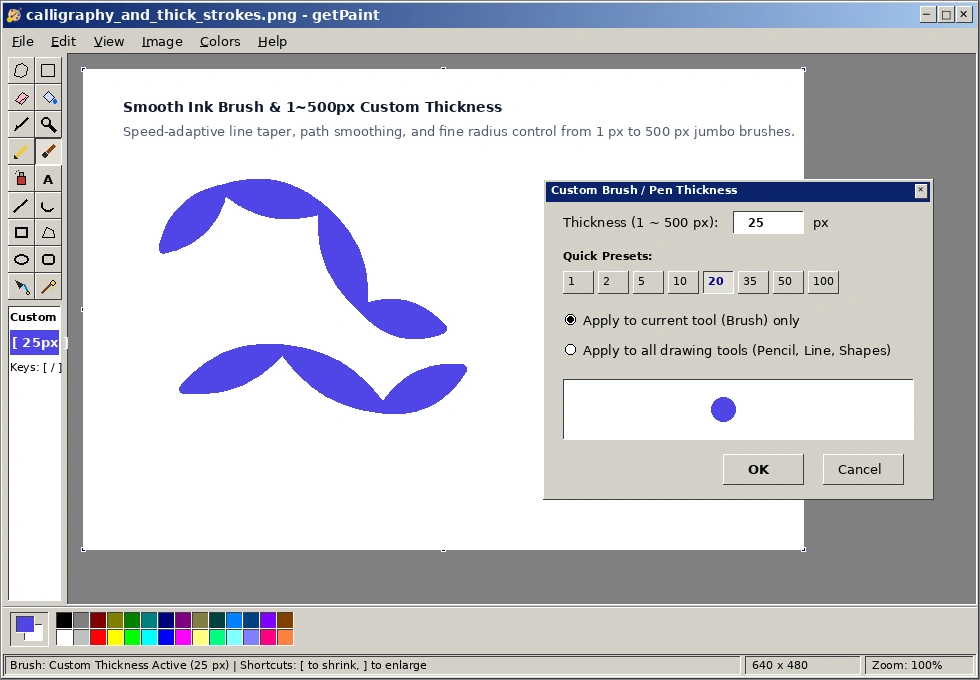
Smooth Ink Brush & 1~500px Dynamic Thickness
Experience dynamic inking with speed-adaptive line tapering and path smoothing. Need a massive brush for quick blocking? Adjust any tool's thickness up to 500 px.
- Bracket Sizing: Press [ to decrease thickness or ] to increase by 1 px (or 5 px with Shift).
- Custom Thickness Dialog (Ctrl+Shift+W): Type any integer radius from 1 to 500 px or pick one-touch presets (1, 2, 5, 10, 20, 35, 50, 100).
- High-Performance Scanning: Large brush strokes utilize adaptive stepping and scanline rendering for zero lag.
By The Numbers
Hard metrics that prove pure native Win32 C++ is light years ahead of web-wrapped desktop utilities.
0.01s
Cold Launch Speed
606 KB
Single Standalone Binary
4.8 MB
RAM Working Set
28 Years
OS Compatibility (Win95 ~ Win11)
| Feature / Metric | getPaint (greatestElectronTransition) | Modern Web/Electron Paint | Classic MSPaint (Win95/XP) |
|---|---|---|---|
| Startup Time (Cold) | 0.01 sec (Instant) | 2.5 ~ 4.5 sec | 0.1 sec |
| Binary / Download Size | 592 KB (Setup: 386 KB) | 150 ~ 250 MB | Built into OS |
| RAM Footprint | < 5 MB | 250 ~ 500 MB | 8 MB |
| OS Support | Win95 ~ Win11 & Wine | Win 10/11 64-bit only | Locked to specific OS build |
| Internal Canvas DIB | 32bpp BGRA Bottom-Up DIB | WebGL / HTML5 2D Canvas | 1bpp / 4bpp / 24bpp DIB |
| Zoom & Pixel Grid | 12.5% to 1600% + White XOR Grid | Arbitrary zoom (Grid varies) | 800% max (No custom spacing) |
| Color Eraser Mode | Right-Click (Signature) | Not supported | Right-Click |
| Magic Wand (Fuzzy Select) | Tolerance 0, 15, 32, 64 | Extension / Plugin only | Not supported |
| Bezier Pen Tool | Smooth Tangents & Select/Stroke | Vector layer complexity | Not supported |
| Mosaic Anonymizer | One-Click (Ctrl+M) | Requires manual filter stack | Not supported |
| Custom Tool Thickness | 1 ~ 500 px ([ / ]) | Slider supported | Fixed 4 preset sizes |
| File Formats | BMP, PNG, JPG, GIF (GDI+ fallback) | PNG, JPG, WebP | BMP (and GIF/JPG on 98+) |
Download getPaint
100% free, pure C++ software. No telemetry, no cloud accounts, and no bundled installers.
Windows Installer
Standard NSIS Setup installer for clean installation, Start Menu shortcuts, and uninstaller support.
Download Setup.exePortable Standalone
Single zero-dependency executable. Drop onto a USB flash drive or portable tool disk and run instantly.
Download getPaint.exeSHA-256 Integrity Verification
f54015cba6b96a48924c1d78dbde8664ce605ea75d5e950b4d2fa248ce138b75  getPaint_Setup.exe
f4b0a77c27c6774792fb716f684cac0926a40b4d79f55c2293e3407473630be0  getPaint.exe
Frequently Asked Questions
Technical details on Windows 95 compatibility, memory efficiency, and architecture.
Does getPaint really run on pure Windows 95 Gold?
Yes! Modern GCC and MinGW runtimes typically link against Vista+ symbols like GetThreadId and ConditionVariable primitives.
getPaint stubs these out at the assembly level, eliminating them from the PE Import Table.
Furthermore, missing msimg32.dll falls back to a 2-pass monochrome mask blit (SRCAND / SRCPAINT), ensuring 100% crash-free execution on vanilla Windows 95.
How does the Right-Click Color Eraser work?
The Color Eraser is MSPaint's legendary signature feature. When dragging with the Left Mouse Button, the eraser clears all pixels within its square nib to Color 2 (Background). When dragging with the Right Mouse Button, getPaint inspects each pixel under the nib: if and only if the pixel matches Color 1 (Foreground), it is replaced with Color 2. All other colors remain untouched!
Can getPaint open and save modern PNG, JPEG, and GIF images?
Yes. getPaint natively supports 1, 4, 8, 24, and 32bpp BMP files via pure Win32 GDI.
For PNG, JPEG, and GIF formats, getPaint dynamically loads gdiplus.dll at runtime via LoadLibraryA.
If GDI+ is absent (such as on vintage Win95 systems without IE), getPaint continues to run smoothly for all BMP drawings.
How do the Tolerance levels work in Fuzzy Select (Magic Wand)?
Press keys 1, 2, 3, or 4 (or Ctrl+1..Ctrl+4) while the Magic Wand is selected. Level 0 selects only 100% exact matching RGB colors. Level 15 (default) allows subtle pixel variations. Level 32 and 64 select wider gradient and shaded zones. Clicking runs a queue-based 4-way flood fill that generates an instant 1-bit mask and promotes the region to a floating selection.
How do I adjust brush and pencil thickness beyond standard presets?
You can press [ to decrease thickness or ] to increase thickness by 1 px (or hold Shift to jump by 5 px). Alternatively, press Ctrl+Shift+W or double-click the toolbox option box to open the Custom Thickness dialog, where you can type any value between 1 and 500 px.
Does getPaint work seamlessly on Linux via Wine?
Flawlessly. Because getPaint relies strictly on pure Win32 GDI and user32/kernel32 APIs without any DirectX, Direct2D, or .NET frameworks, it starts instantaneously in Wine with zero configuration and full keyboard navigation support.
Start Painting at the Speed of Light
No waiting, no splash screens, and no memory hogging. Download getPaint and experience the true power of pure Win32 GDI.